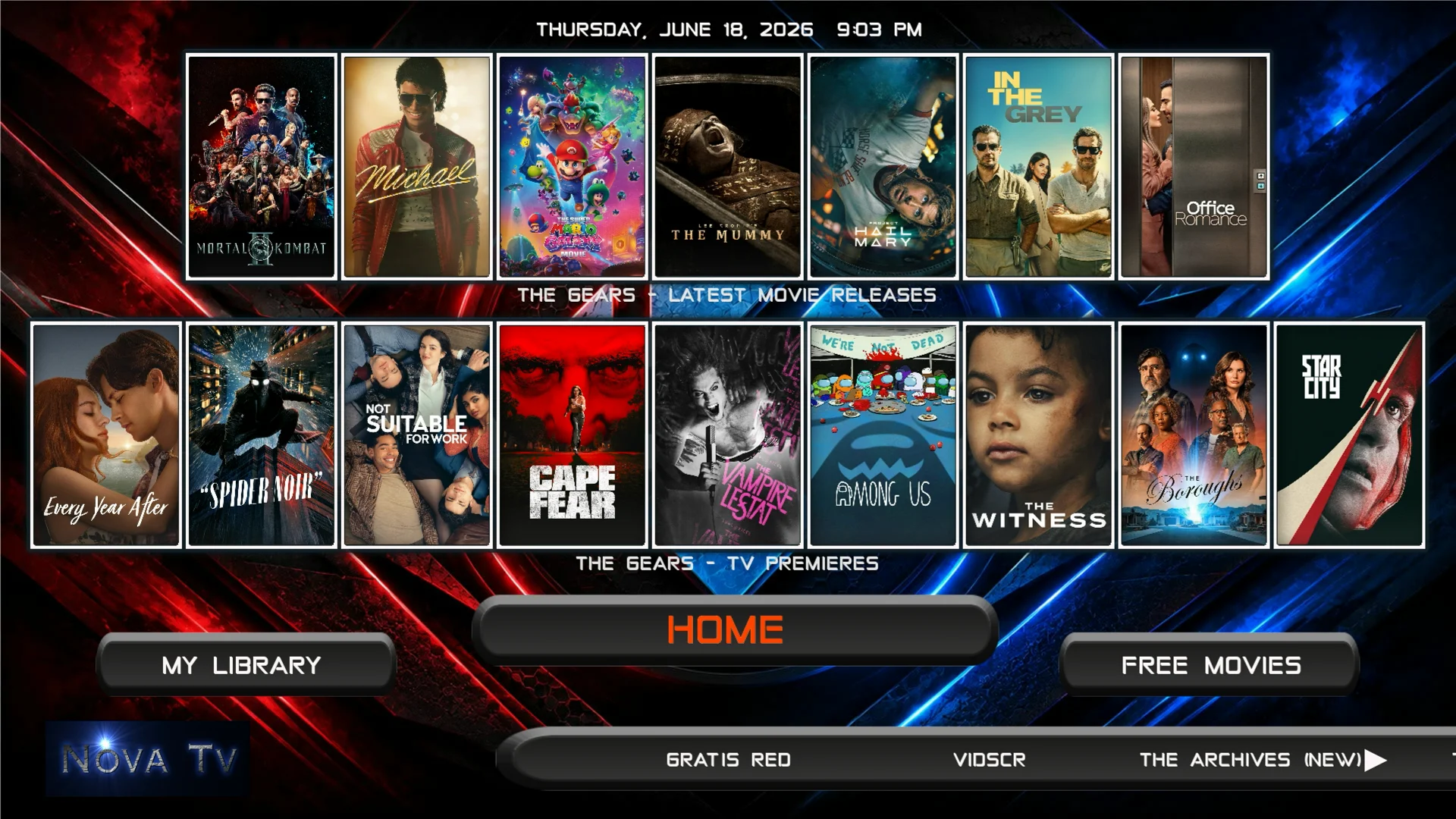
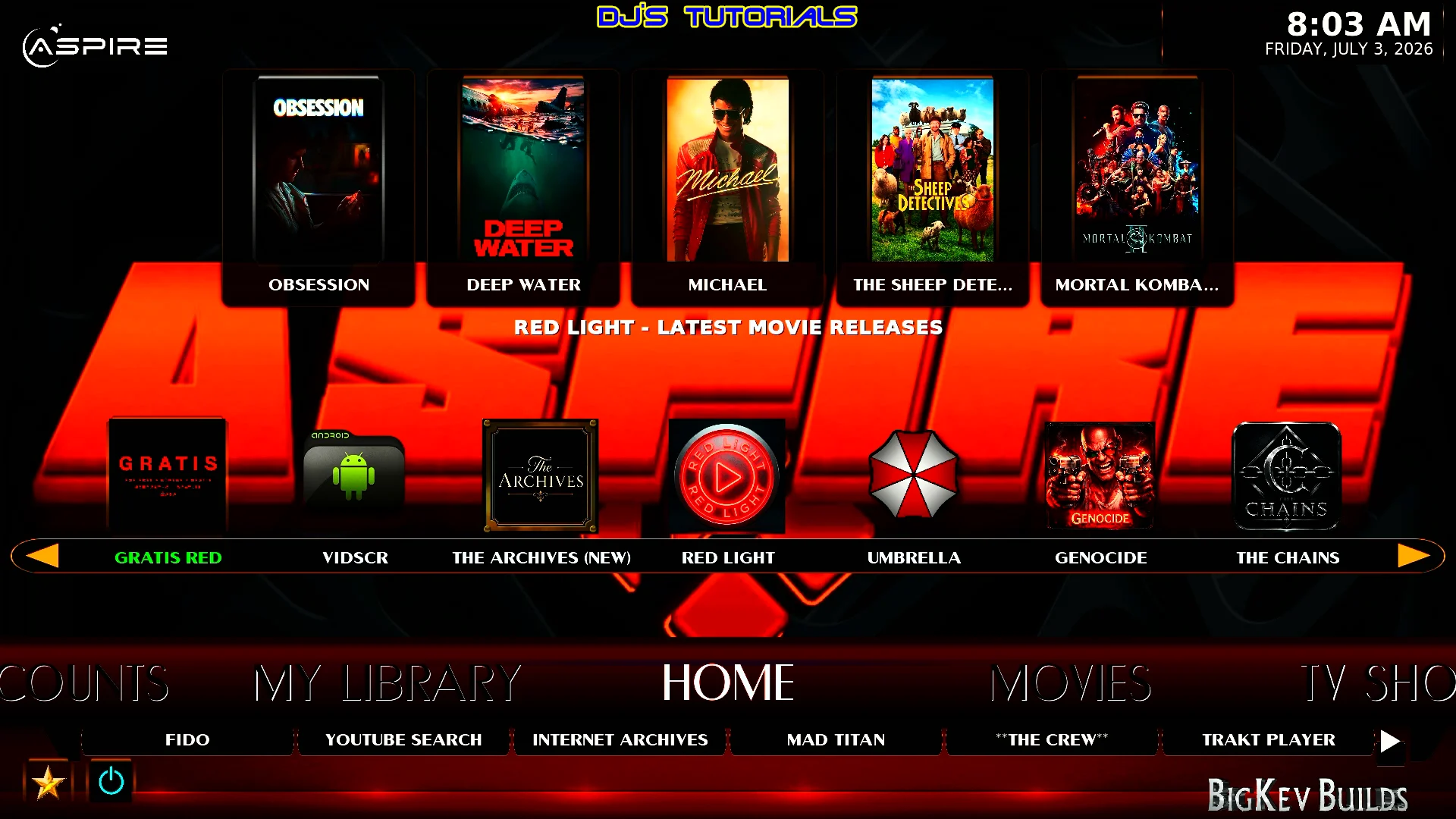
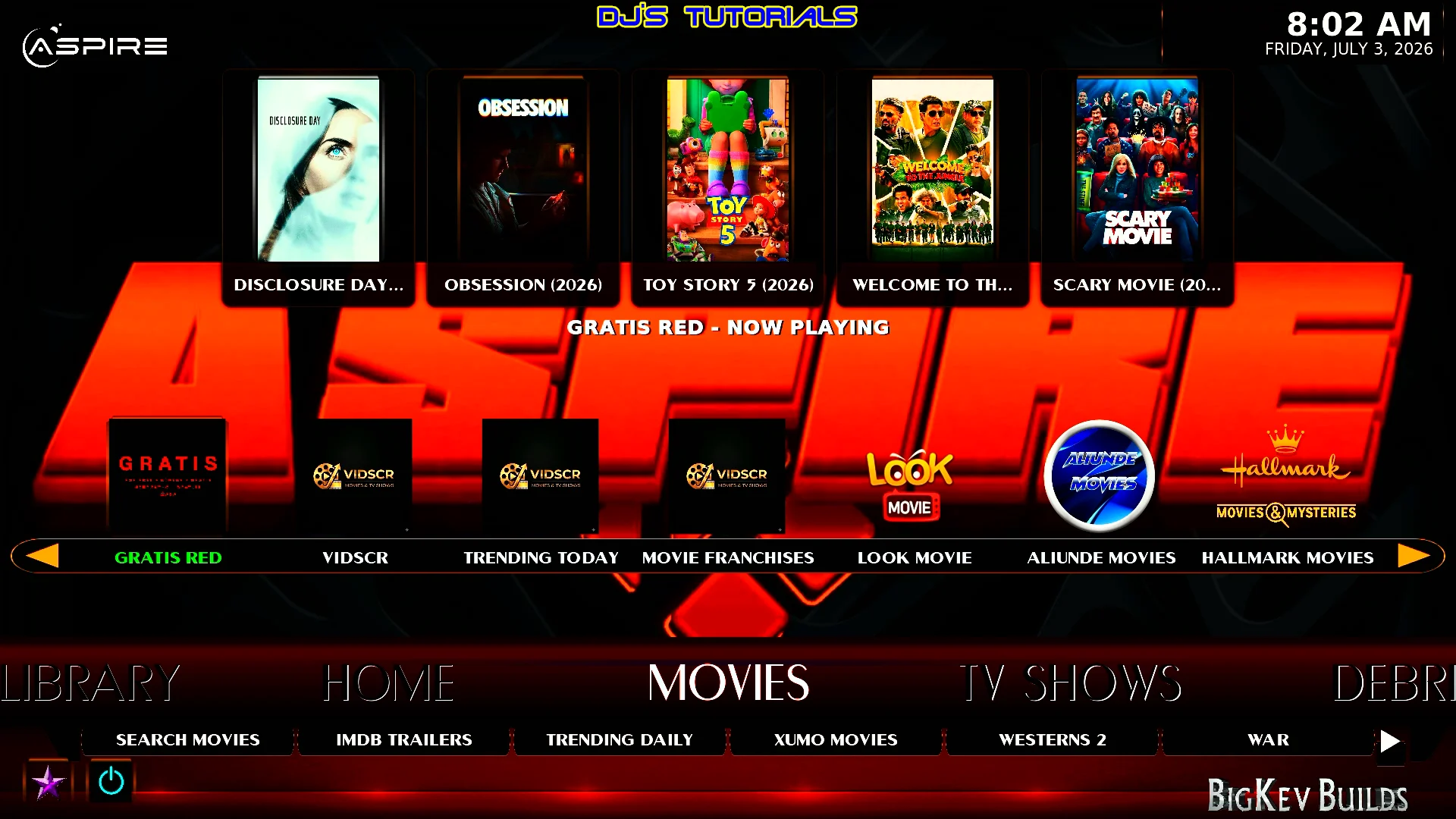
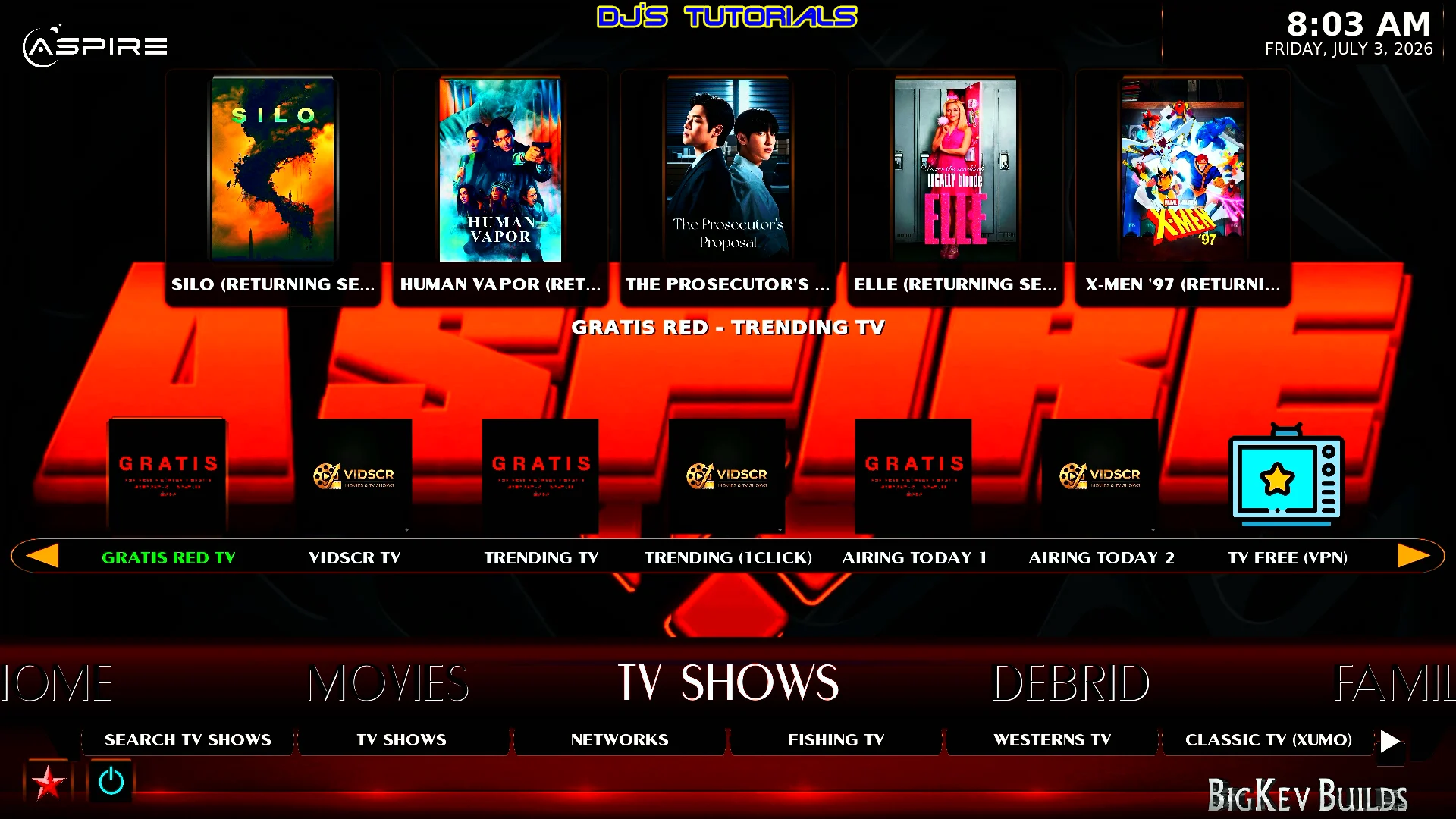
Aspire is an All-In-One Build which is located within the Doomzday repository. It offers Free sources but a Debrid provider like Real-Debrid is recommended for best performance. It’s packed with a lot of well known addons like Umbrella, Gratis Red, The Chains, and many more.
This build can be installed on any device that has Kodi installed on it like the Amazon Fire Stick, Google TV, tablets, PC, and more.
Below you will find a video installation guide and a screenshot guide.
Video Tutorial
ASPIRE Kodi Build Installation Steps
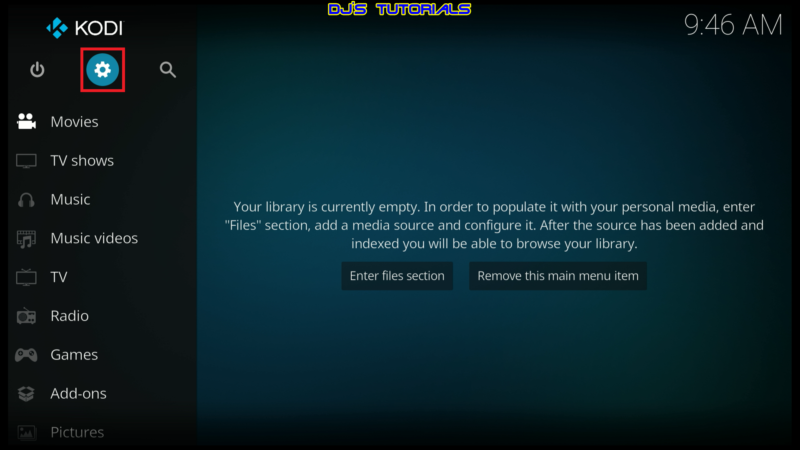
- Click on the settings icon


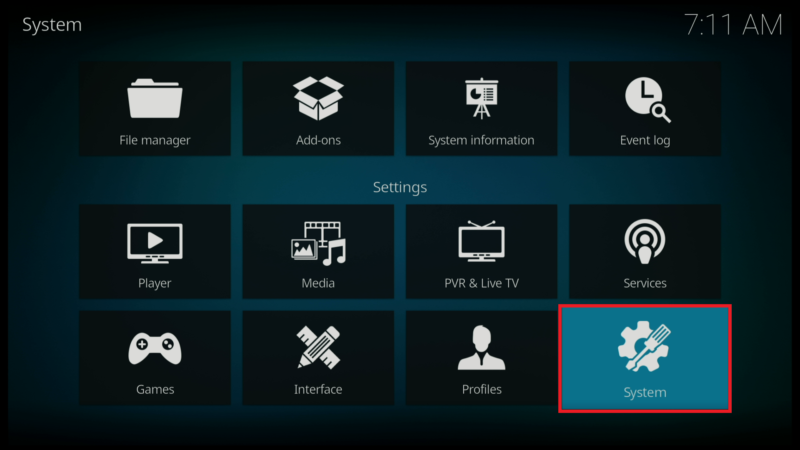
- Click on System.
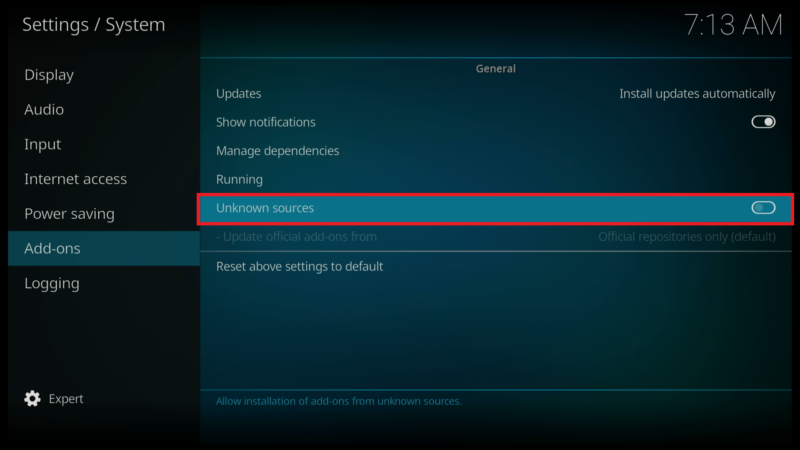
- Scroll down to the Add-ons menu and turn on Unknown sources if not already on.
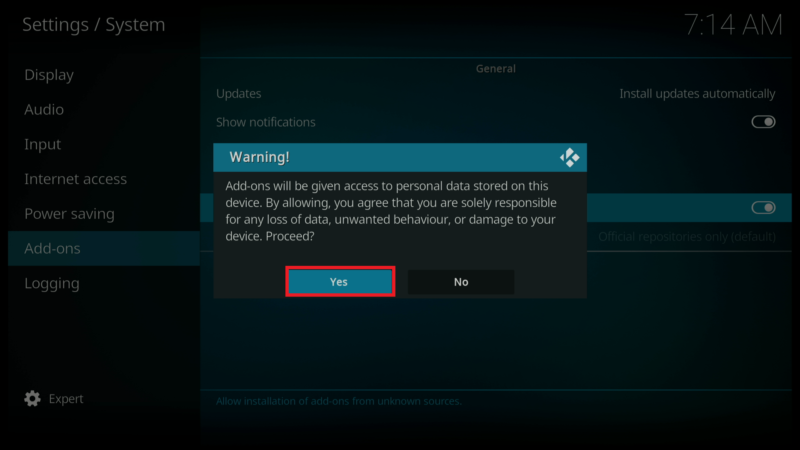
- Click on Yes after you read the Warning message.
- Click back on your remote to go back to the System page.
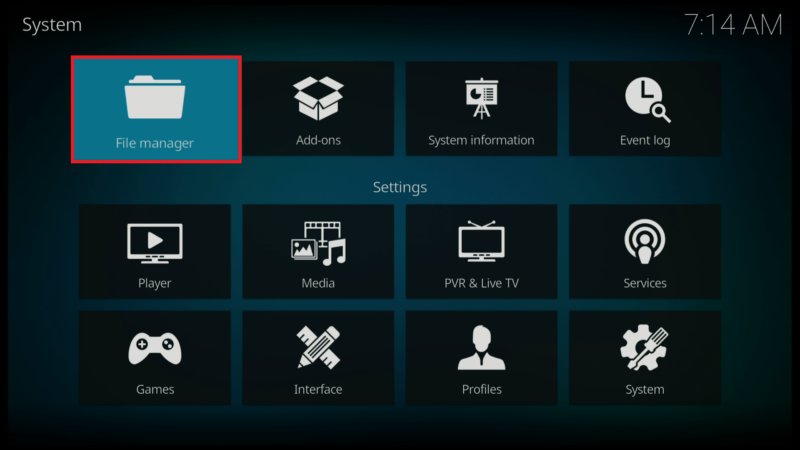
- Select File Manager.
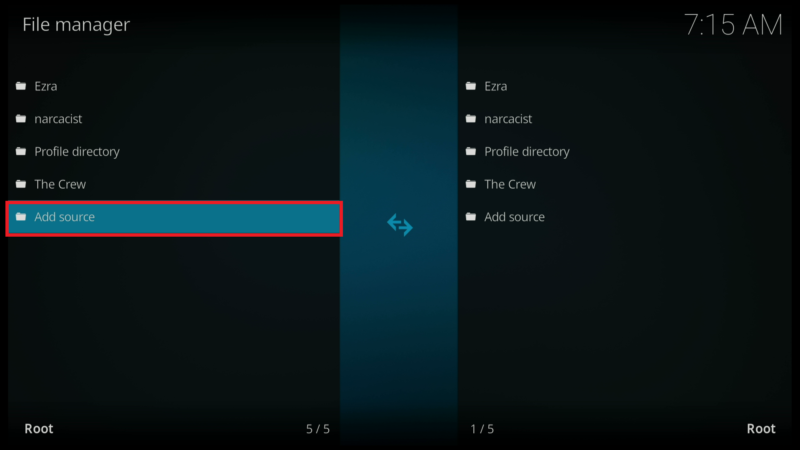
- Click on Add source.
- Click on <None>.
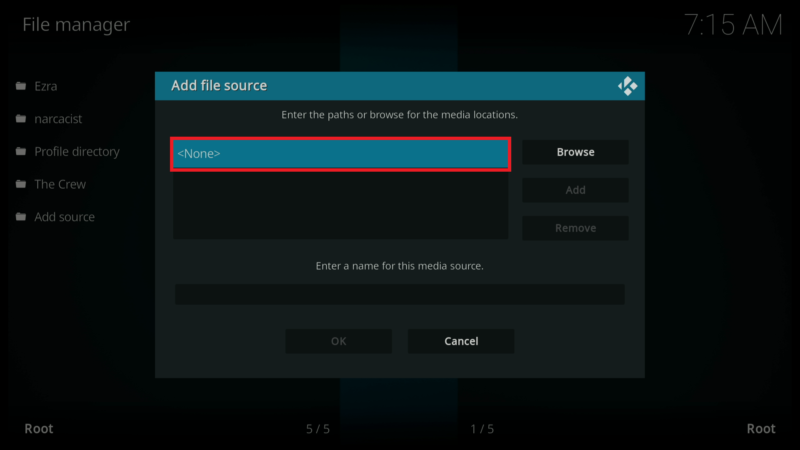
- Enter the following URL exactly how it is shown here – https://doomzdayteam.github.io/doomzday and click OK.


Use doomzday or any name of your choice for the media source and click OK.

Click the back button on your remote until you are back on the System screen. Then click on Add-ons.

Click on Install from zip file.

Select “doomzday” or whatever you named the media source in the previous step.

Click on the zip file URL – repository.doomzday-x.x.x.zip

Wait for the “Doomzday Repo Add-on installed” message to appear.

Click on Install from repository.

Click on Doomzday Repo.

Click on Program add-ons.

Select Doomzday Simple Wizard.

Click on Install.

You will see the Doomzday Simple Wizard Add-on installed message.

Click on OK

Click on Close

Click on YES to install a build now

Scroll down and find ASPIRE Version x.x and click on it.

Click on Continue

Wait for the build to download and install

When complete, click on OK to force close Kodi

Relaunch Kodi to see the new installed build.

Wait a few minutes for all the add-ons and dependencies finish updating before you start exploring the ASPIRE build.