
How To Install Atomic 21 Kodi Build
Atomic is another popular Kodi Build among users. It’s packed with a lot of well known addons like The Crew, Fen Lite, Moria, Shazam, Asgard, Magic Dragon, and more.
It offers offers a Debrid or a Free version. Selecting the Debrid version requires the use of a debrid service like Real-Debrid in order to stream content.
Atomic 21 Kodi Build Installation Steps
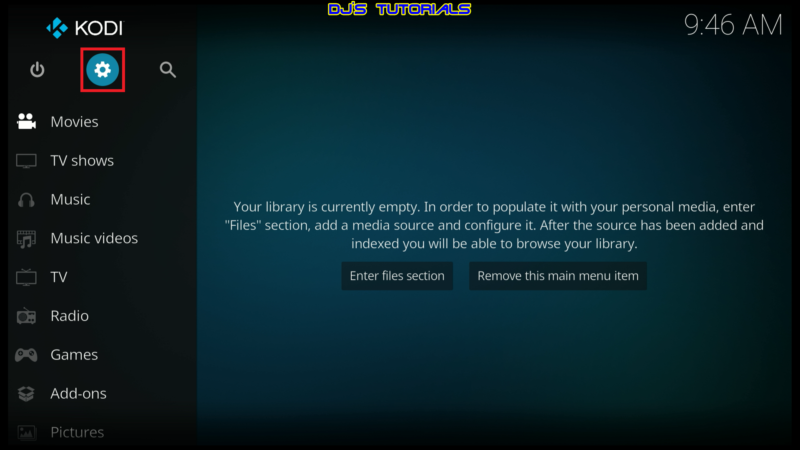
- Click on the settings icon


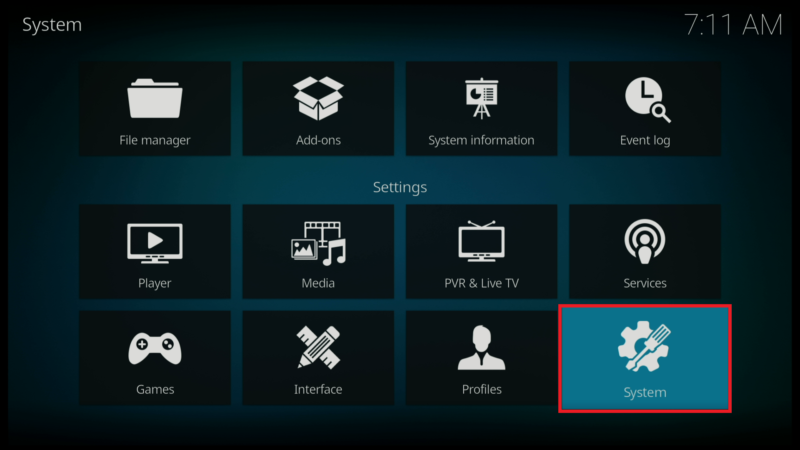
- Click on System.
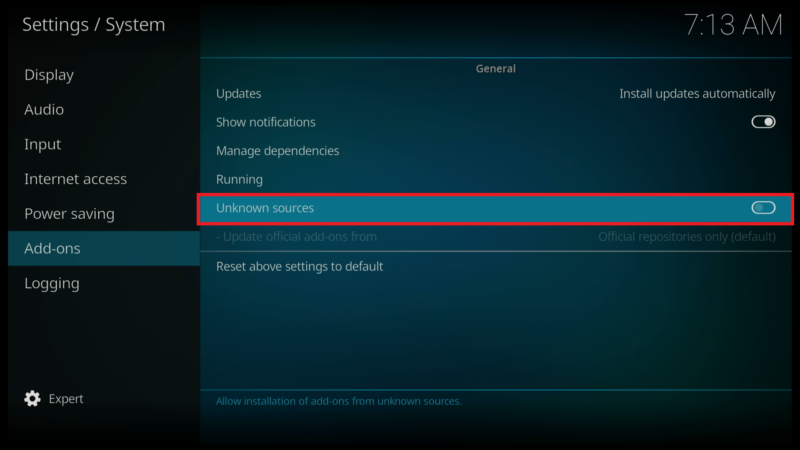
- Scroll down to the Add-ons menu and turn on Unknown sources if not already on.
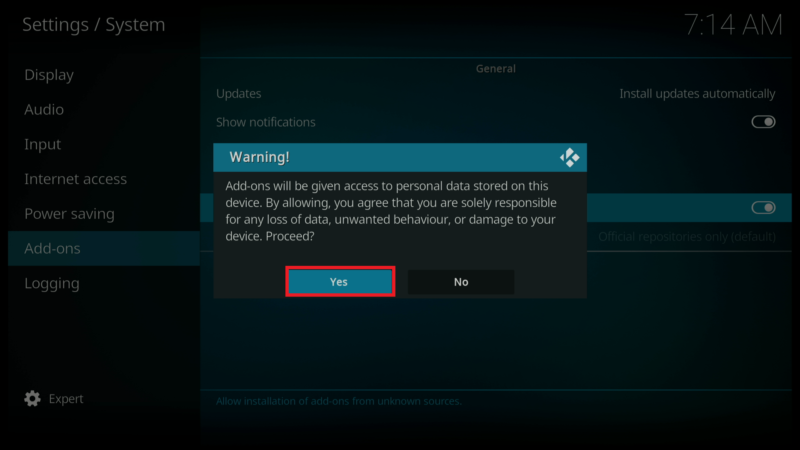
- Click on Yes after you read the Warning message.
- Click back on your remote to go back to the System page.
- Select File Manager.
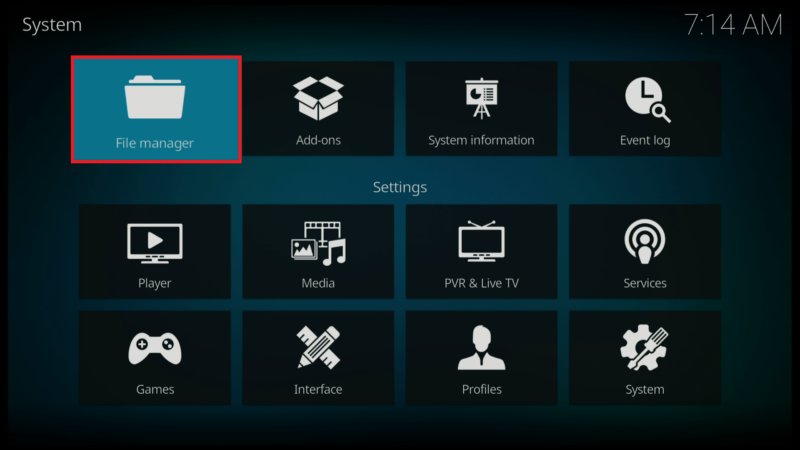
- Click on Add source.
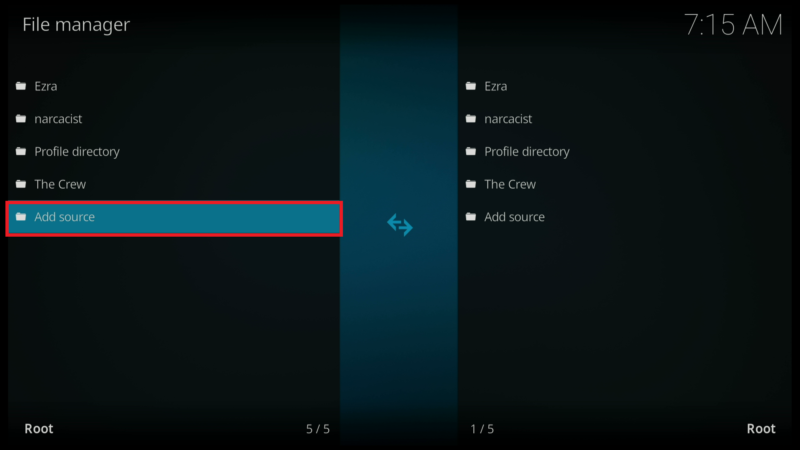
- Click on <None>.
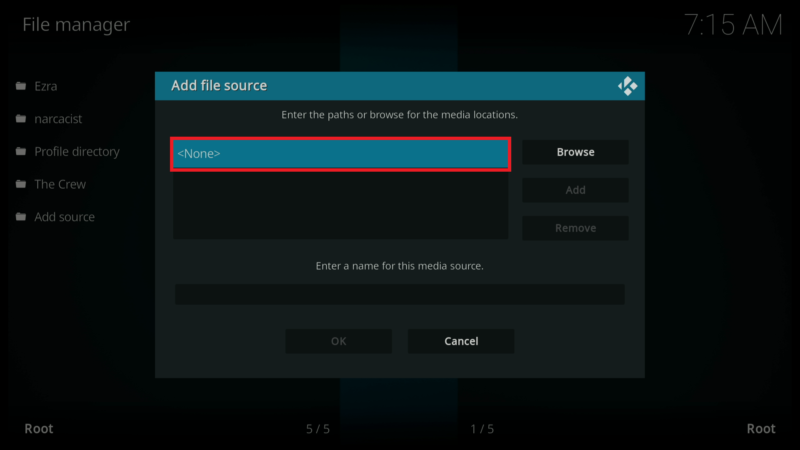
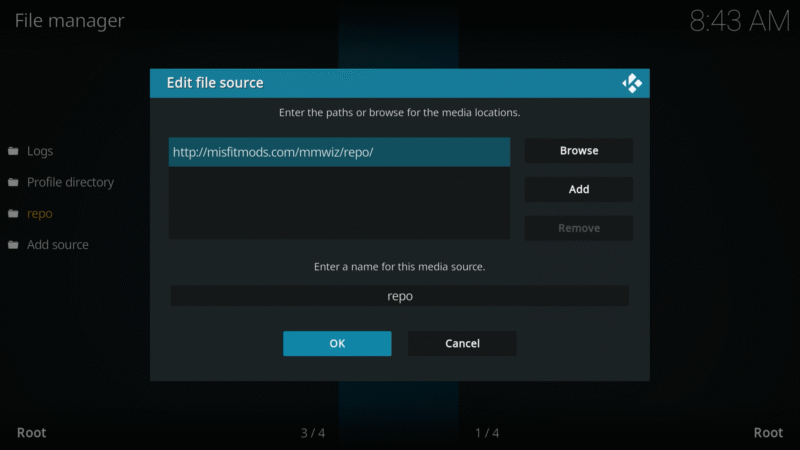
- Enter the following URL exactly how it is shown here – https://team-crew.github.io and then click OK.
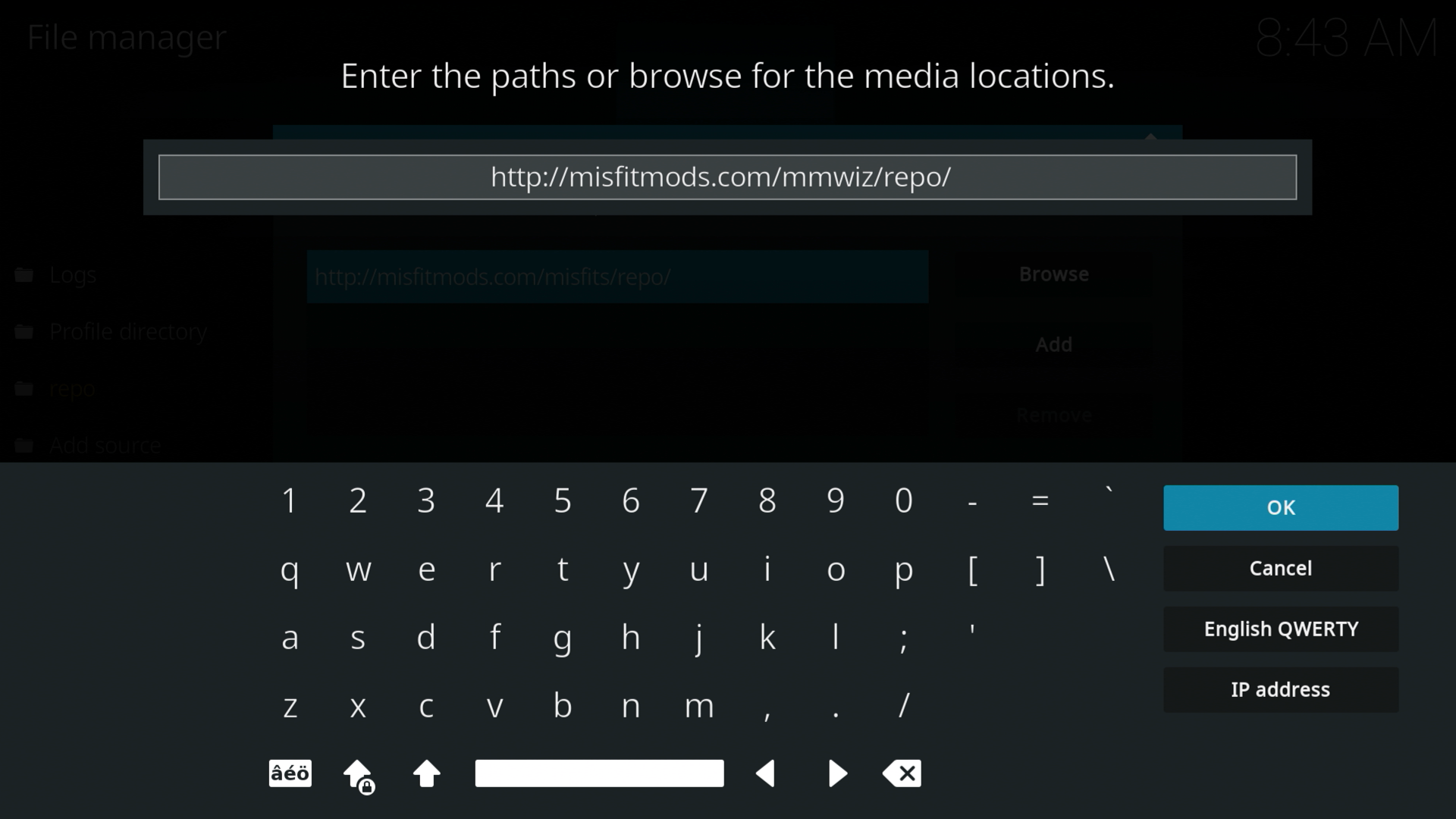

- Click on the box under the source that you just entered and type in a name for this source.
- Type “repo” or any other name you would like to identify this source as and click OK.
- Click the back button on your remote until you are back on the System screen. Then click on Add-ons.

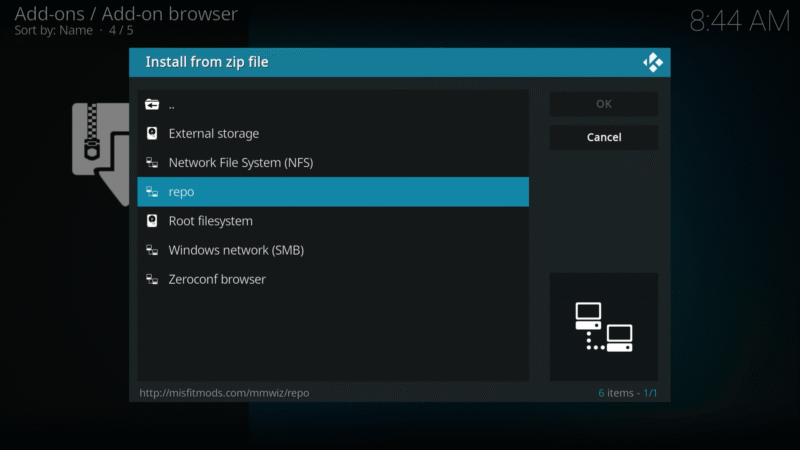
- Click on Install from zip file.

- Select “repo” or whatever you named the media source in the previous step.
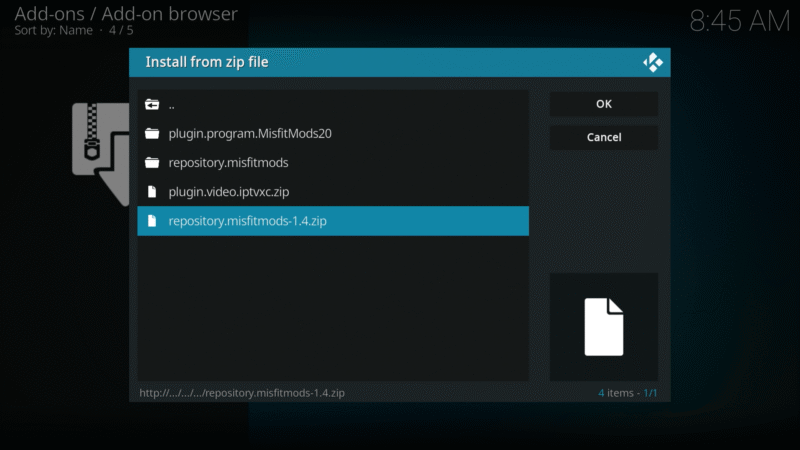
- Click on the zip file URL – repository.misfitmods-x.x.x.zip
- Wait for the “The Misfit Mods Repo Add-on installed” message to appear.
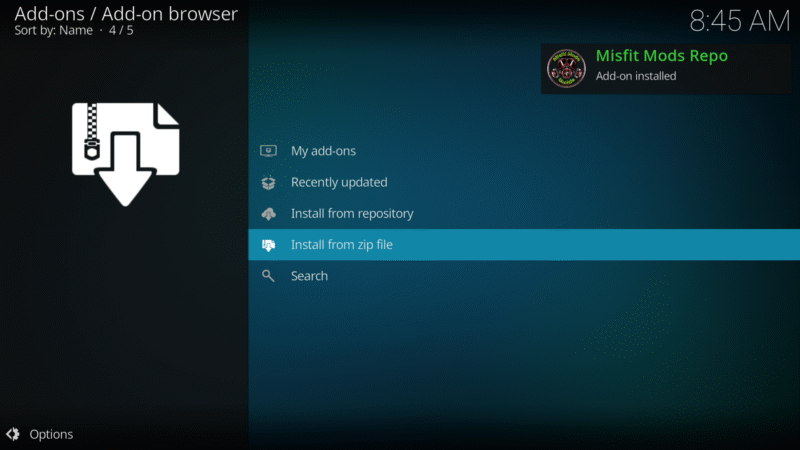
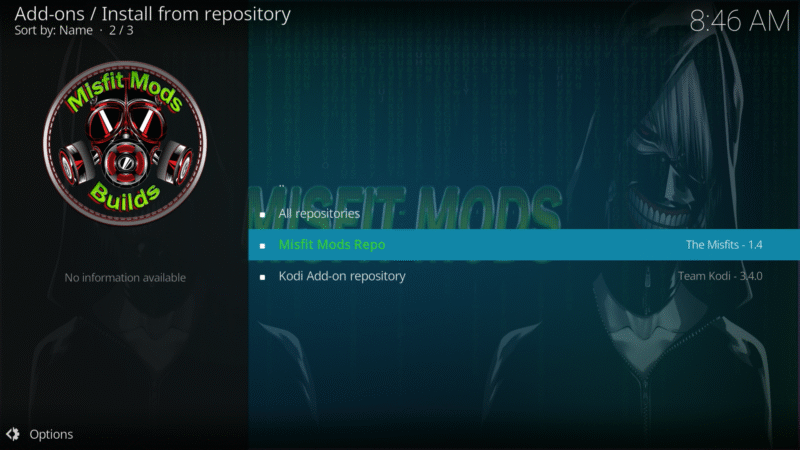
- Click on Install from repository.

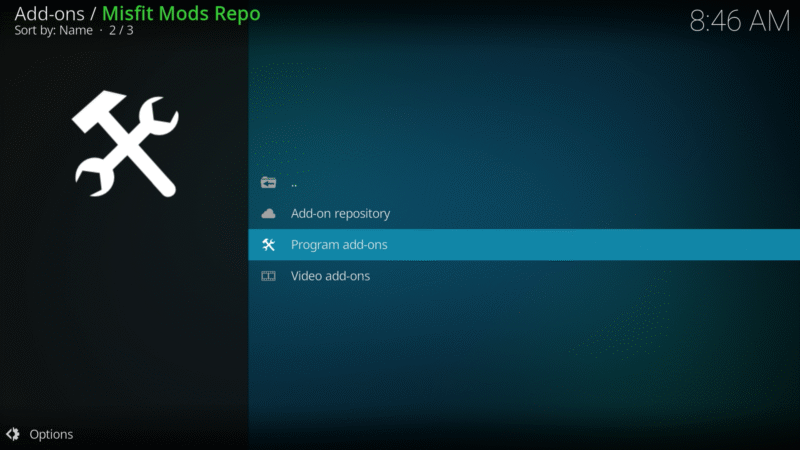
- Click on The Misfit Mods Repo.
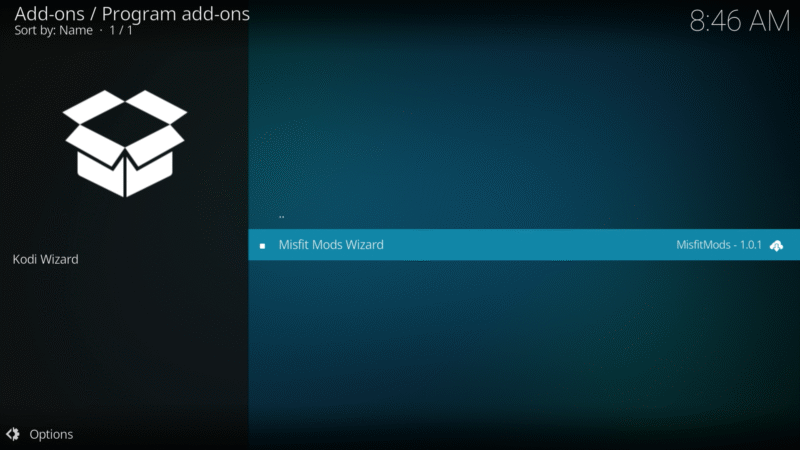
- Click on Program add-ons.
- Select Misfit Mods Wizard
- Click on Install
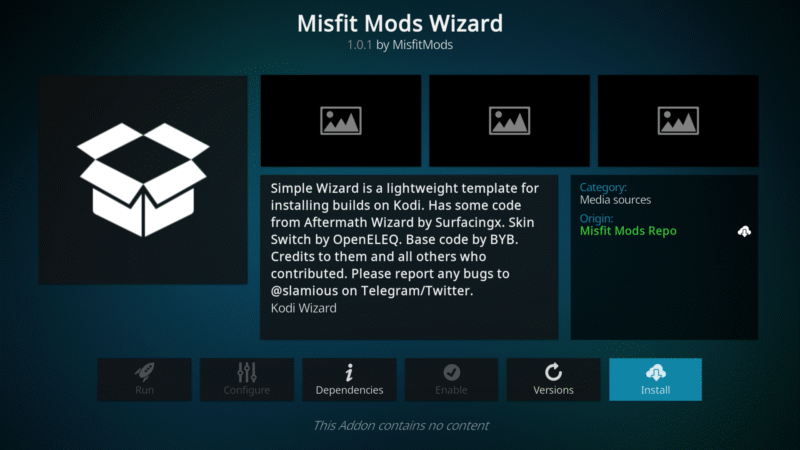
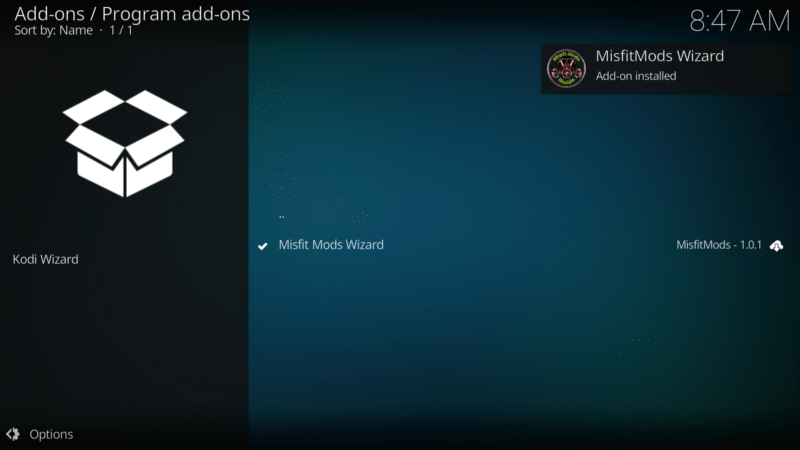
- You will see the Misfit Mods Wizard Add-on installed message
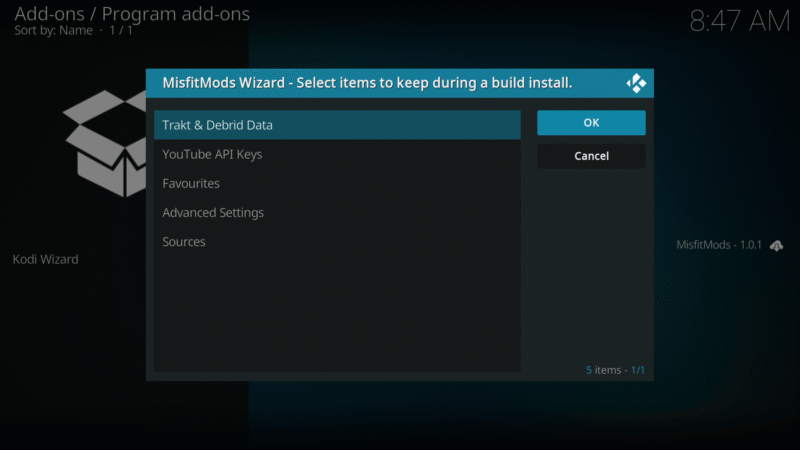
- Click on OK
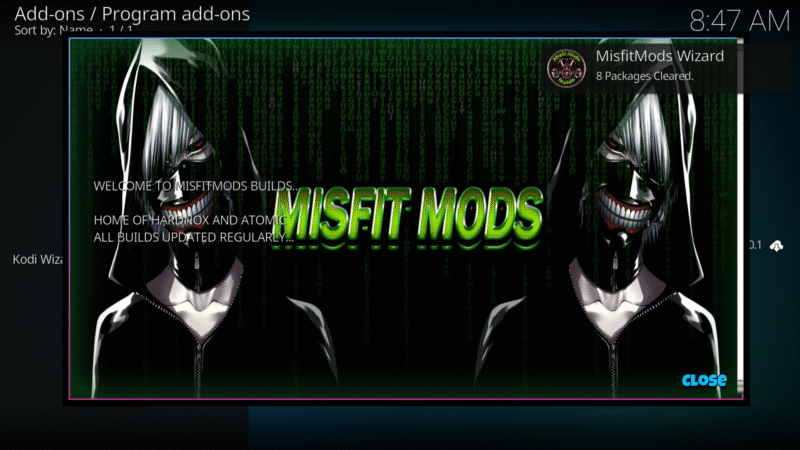
- Click on Close
- Click on YES to install a build now
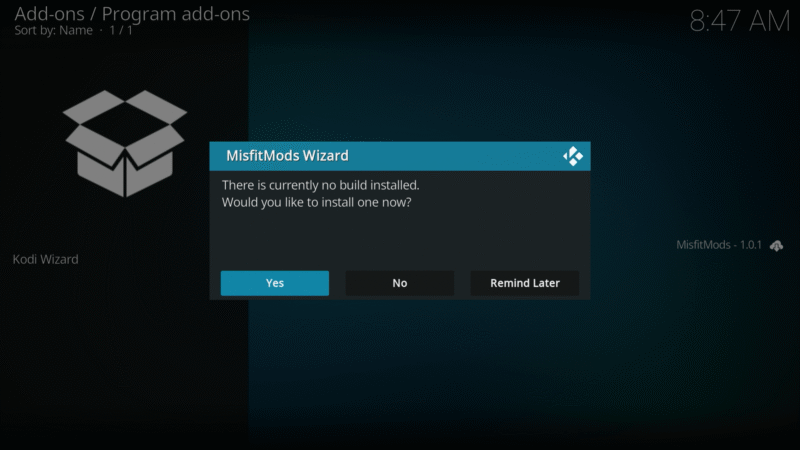
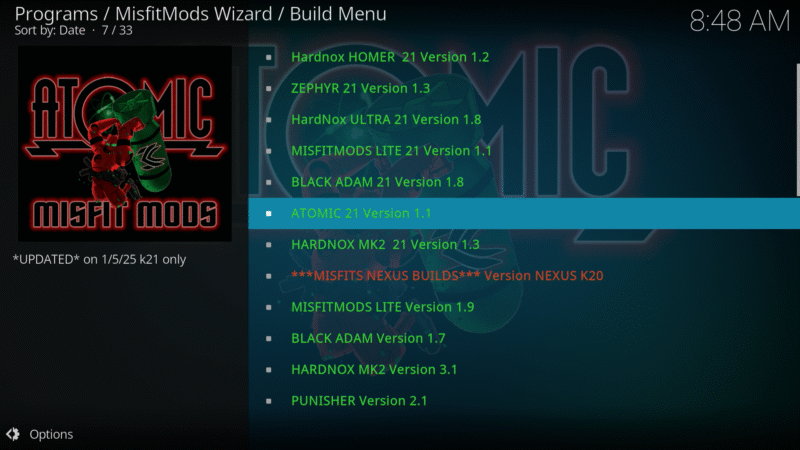
- Scroll down and find Atomic 21 Version 1.x and click on it
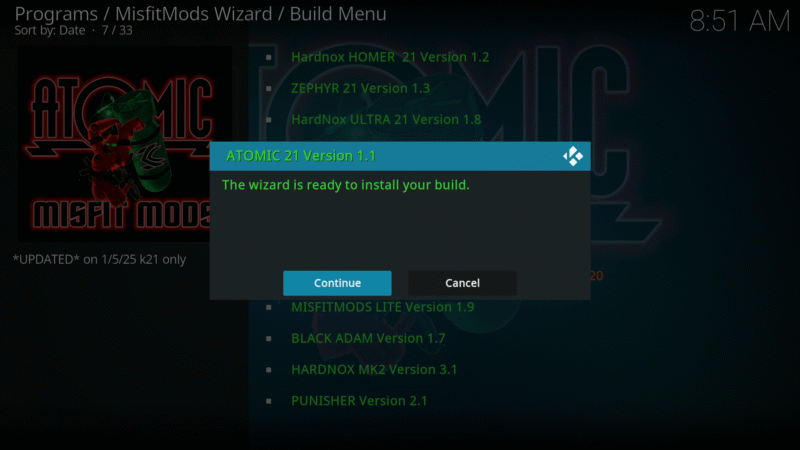
- Click on Continue
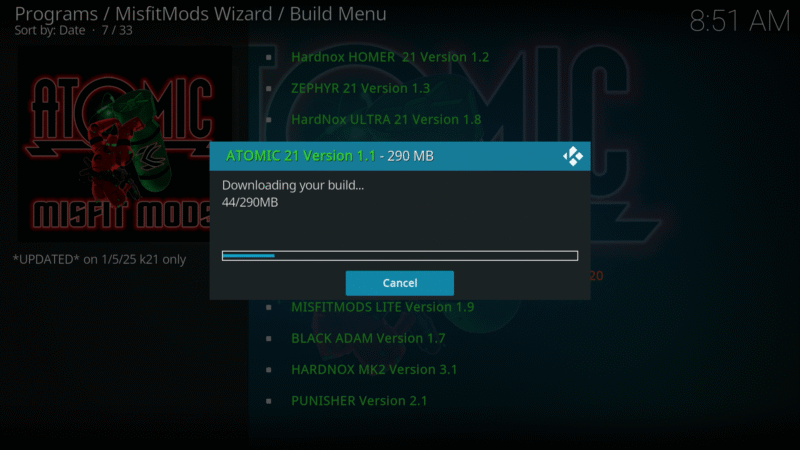
- Wait for the build to download and install
- When complete, click on OK
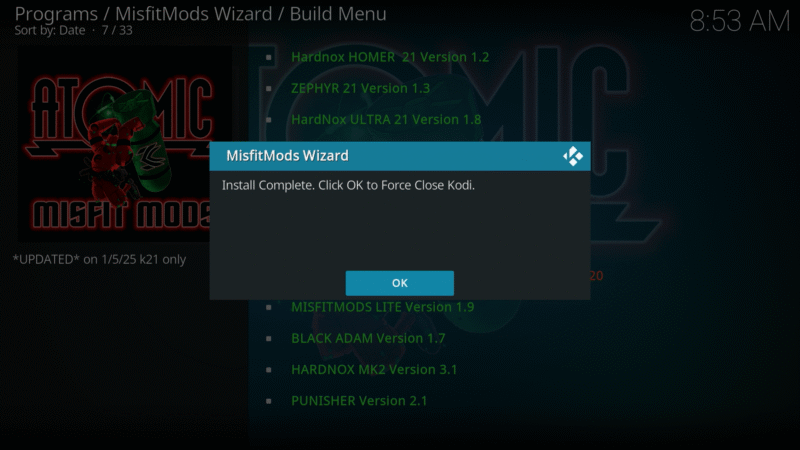
- Kodi will force close itself down. Relaunch Kodi to see the new installed build.

- Wait a few minutes for all the add-ons and dependencies finish updating before you start exploring the Atomic 21 build.
