
Install The Crew Kodi Addon
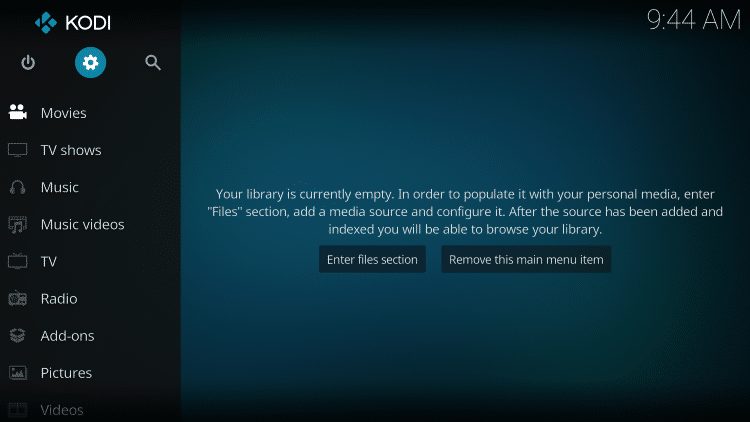
Launch Kodi
Click the settings icon 
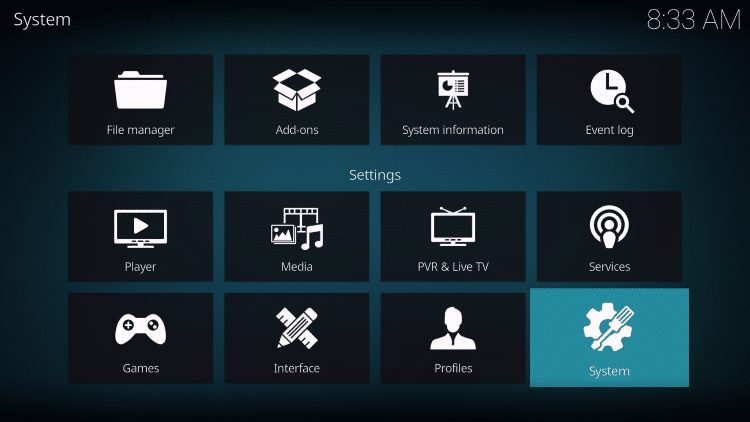
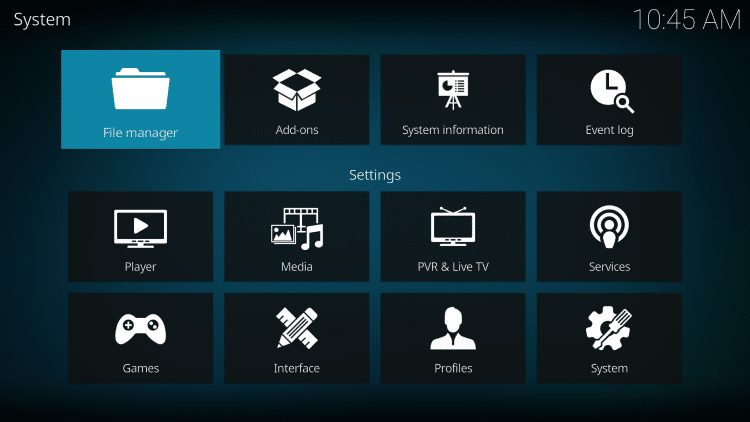
Click on System
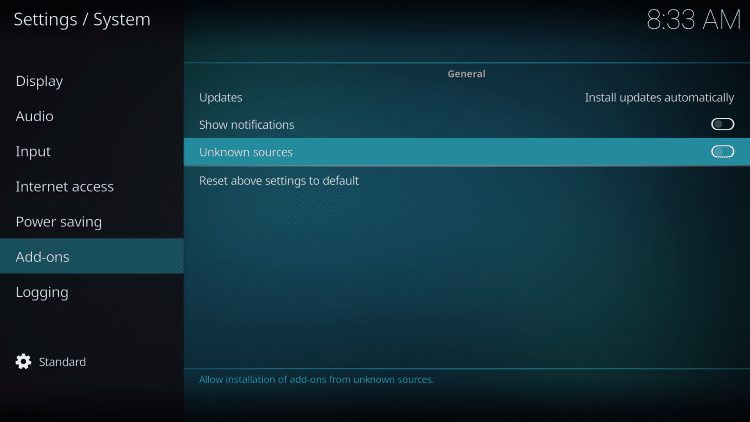
Hover over Add-ons menu item and turn on Unknown sources if not already on
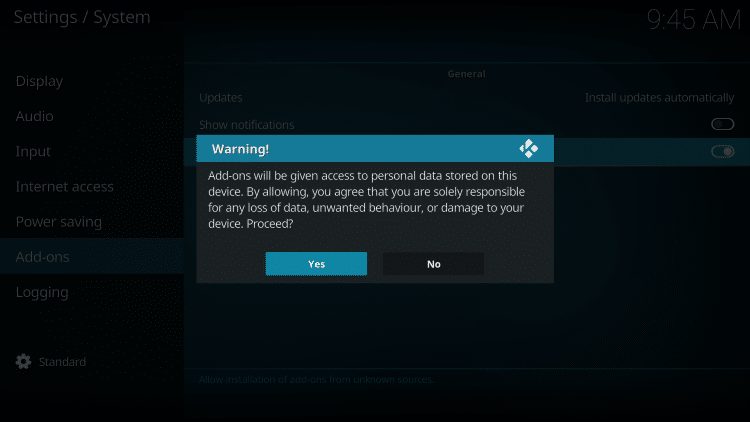
Read the pop-up message and select Yes. “Add-ons will be given access to personal data stored on your device!”
This is why it is a good idea to be using a VPN when you are using Kodi add-ons.
It will hide your personal information and data.
Click the back button on your remote to go back to the System page
Select File Manager
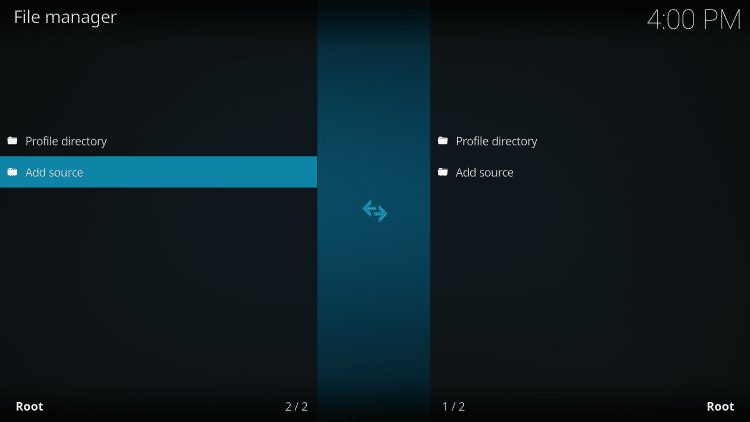
Click Add source
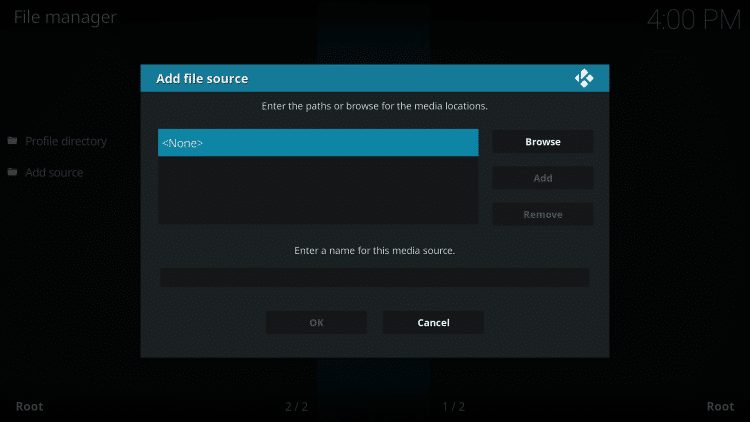
Click on None.
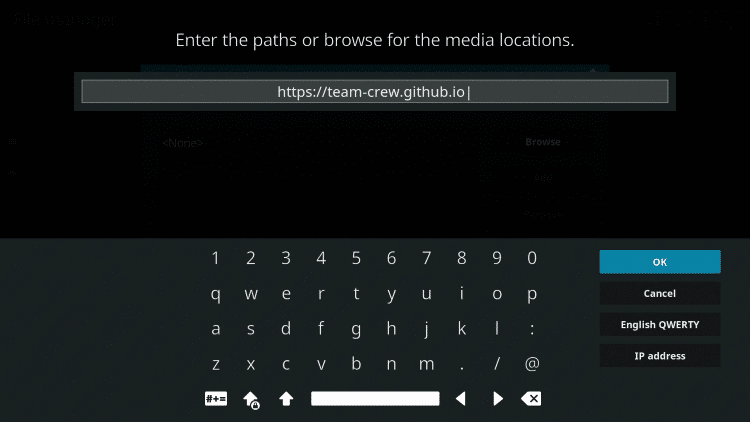
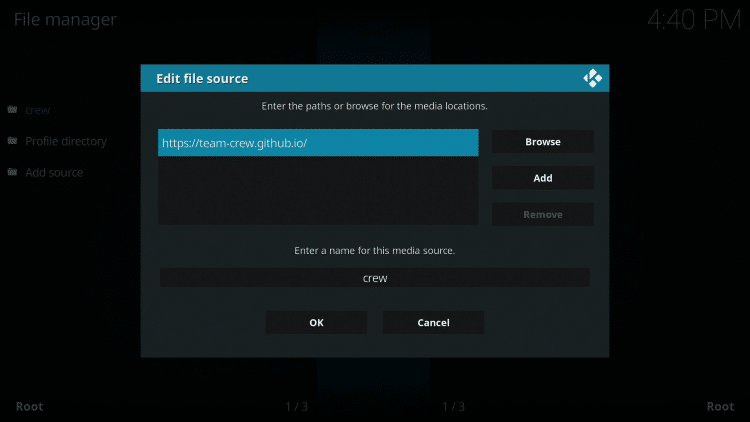
Type the following URL exactly how it is listed here – https://team-crew.github.io and click OK
Highlight the box under the source that you just typed in and enter a name for this media source,
type “crew” or any other name you would like to identify this source as, and click OK
Click your back button on the remote or keyboard until you are back on the System screen
Choose Add-ons
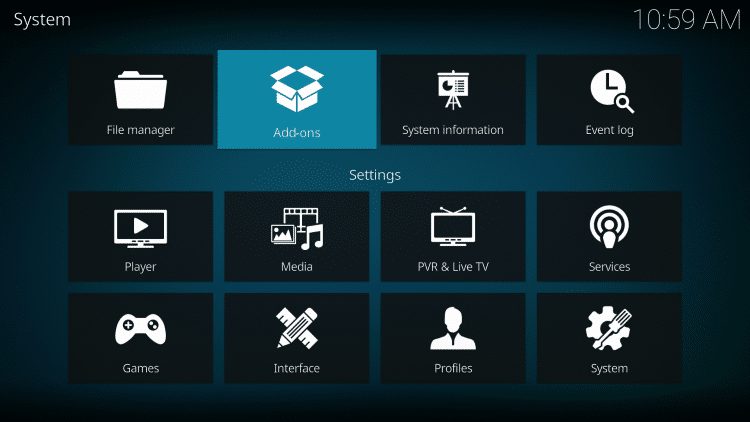
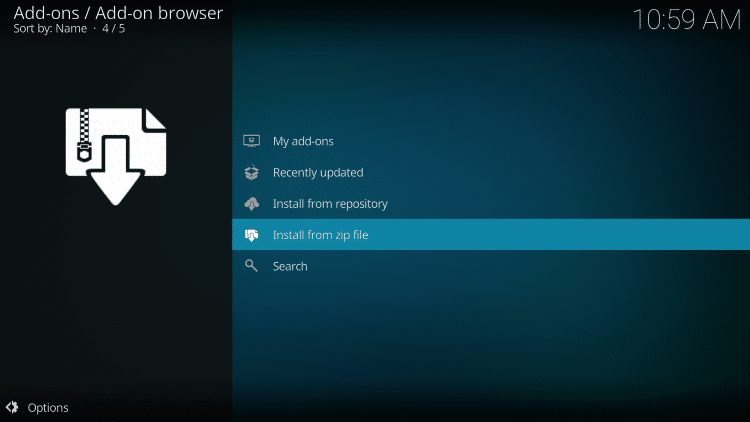
Click Install from zip file
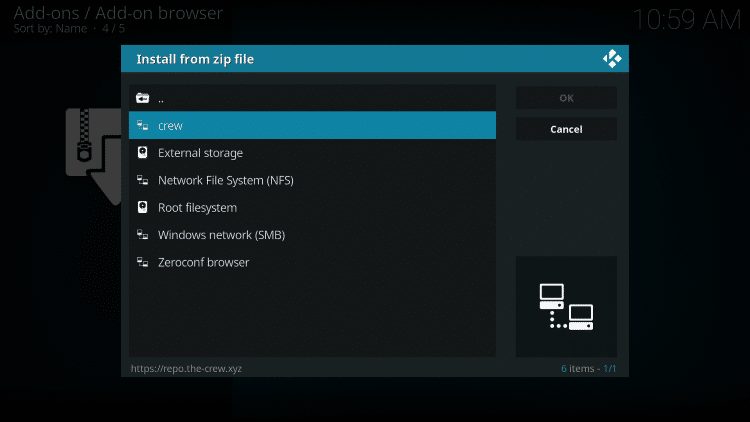
Choose “crew” or the name you assigned the media source in the previous step
Click the repository URL – repository.thecrew-0.3.7.zip or the latest version at the time you are installing
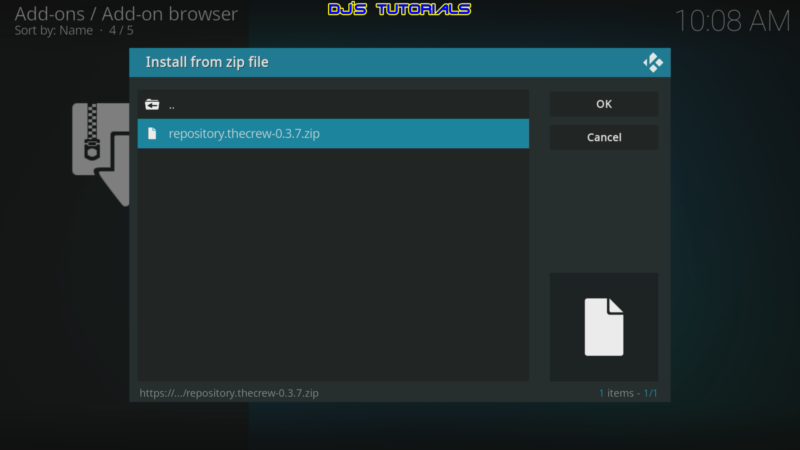
Wait for The Crew Repo Add-on installed message to appear
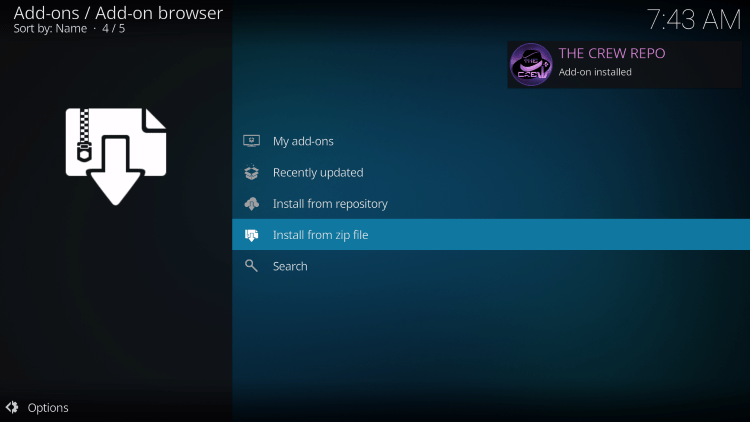
Click on Install From Repository

Choose The Crew Repo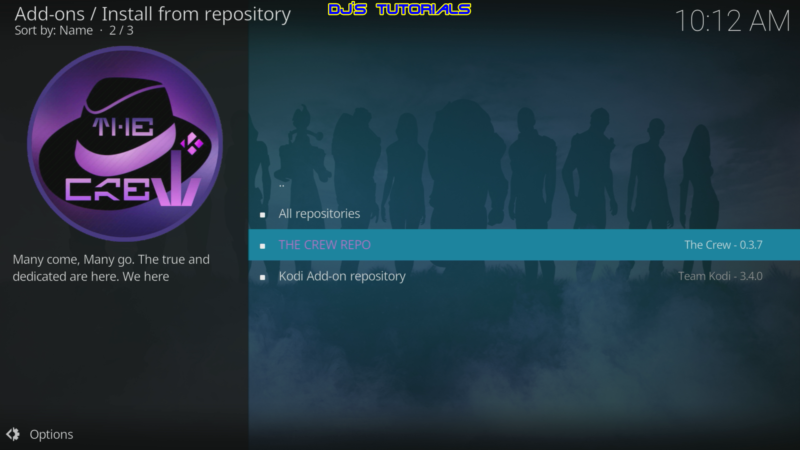
Click on Video Add-Ons
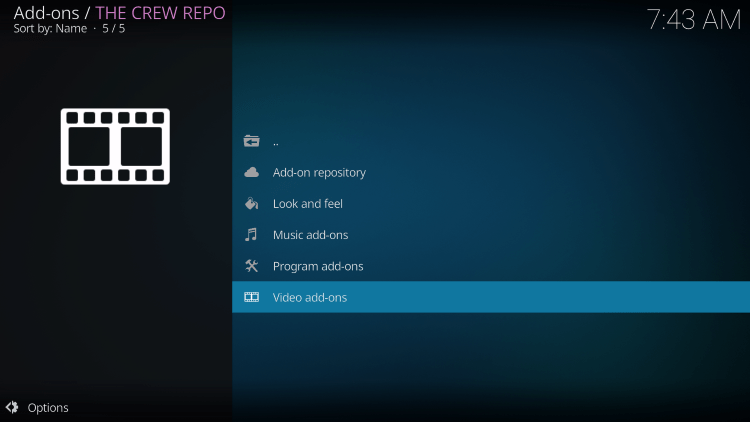
Choose The Crew
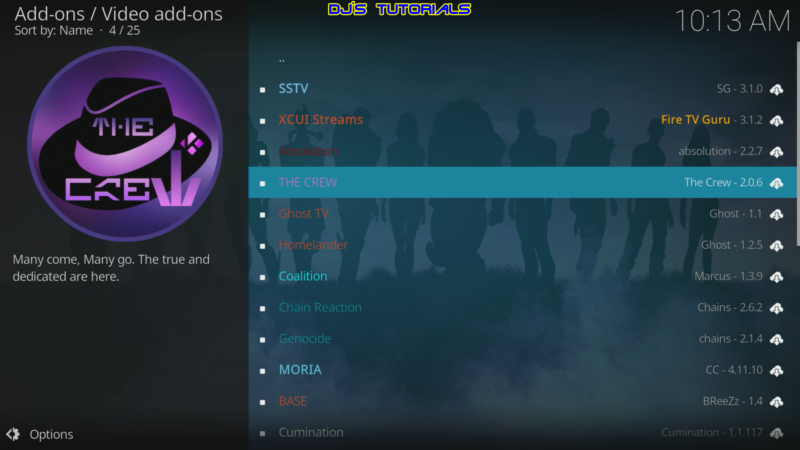
Click on Install
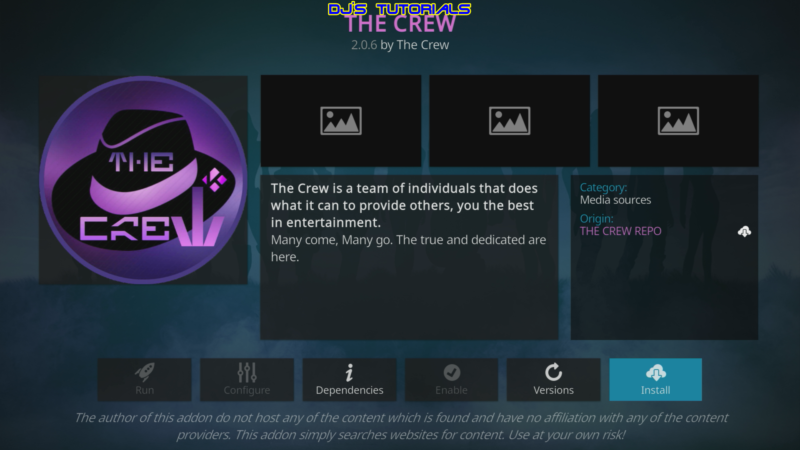
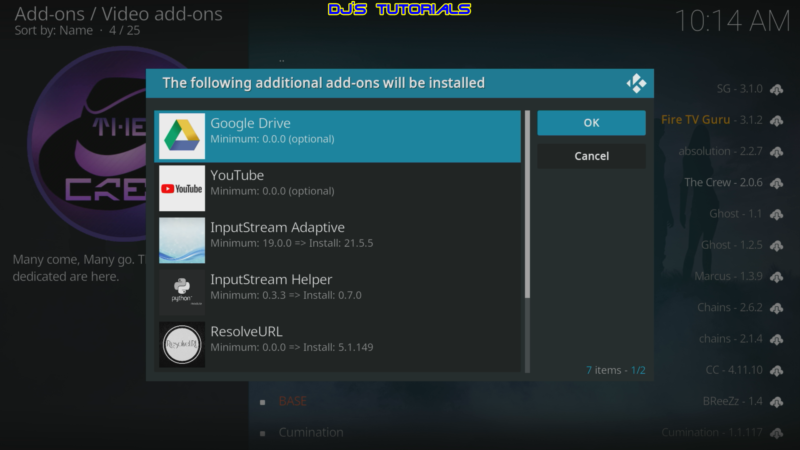
Kodi will then pop-up a message stating “The following additional add-ons will be installed”,
Click OK
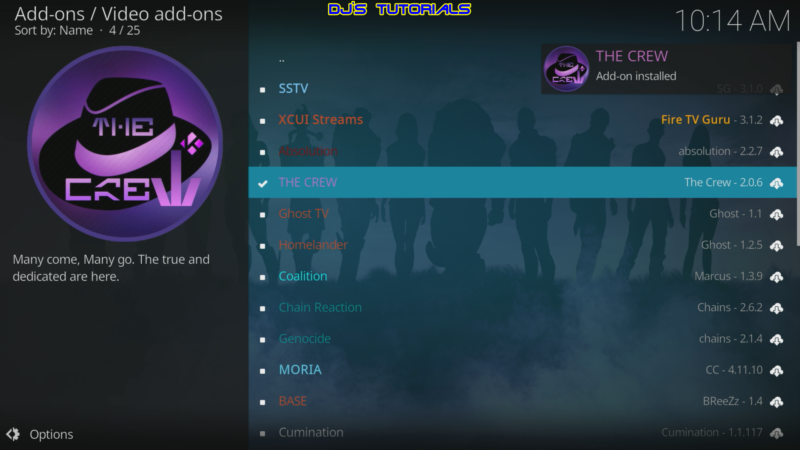
Wait for The Crew Add-on installed message to appear
Click the back button until you return to the home screen, then scroll down and click Add-ons.
Scroll over and select The Crew add-on
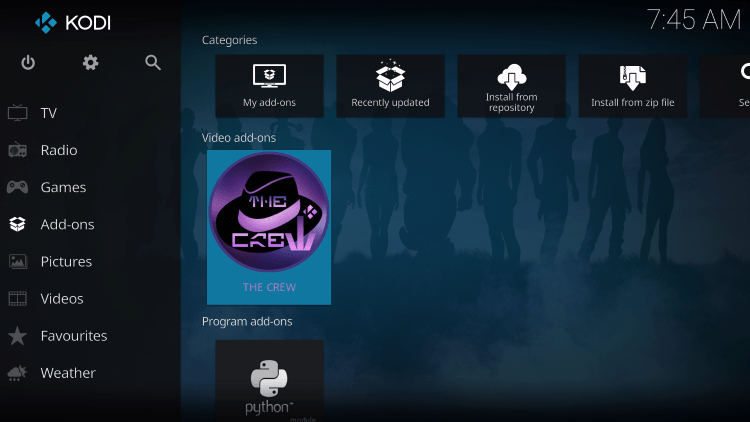
Installation of The Crew is now complete. Enjoy!
How to Use Real-Debrid Within The Crew
If you are looking to get the best quality links for a buffer-free experience with The Crew,
using Real-Debrid will provide you with the best streaming experience.
Follow the quick guide below for linking Real-Debrid with The Crew Kodi add-on.
1. You must register for a Real-Debrid account if you don’t have one already.
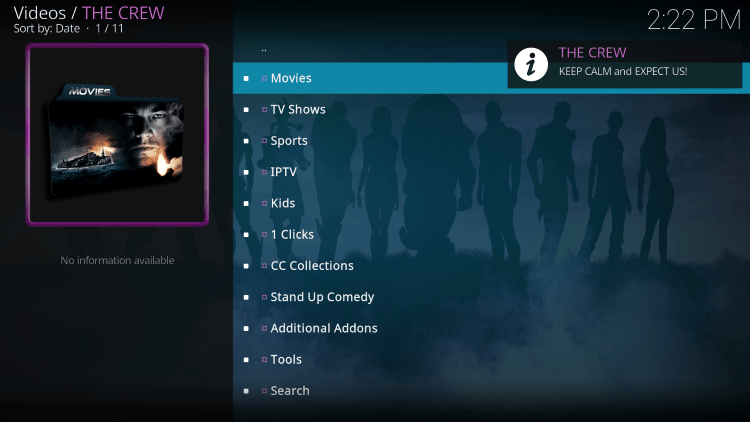
2. Launch The Crew Kodi Addon
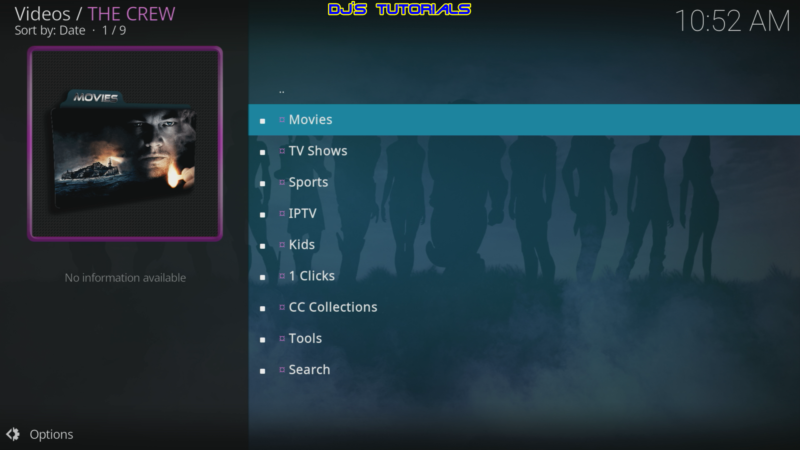
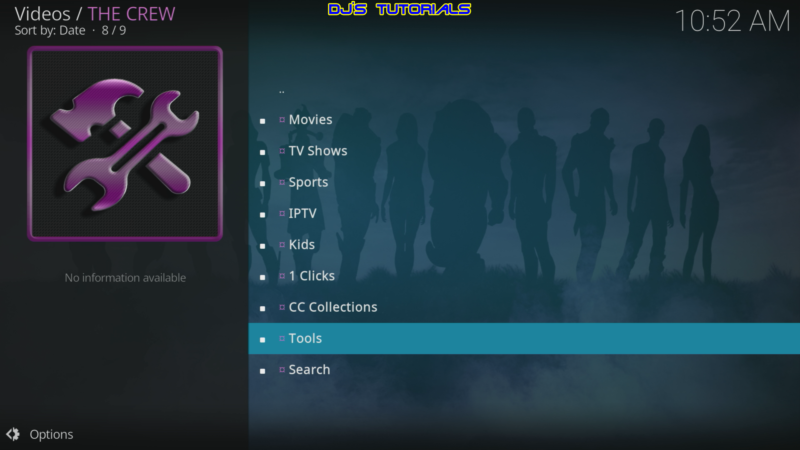
3. Scroll down and click Tools.
4. Select ResolveURL: Settings.
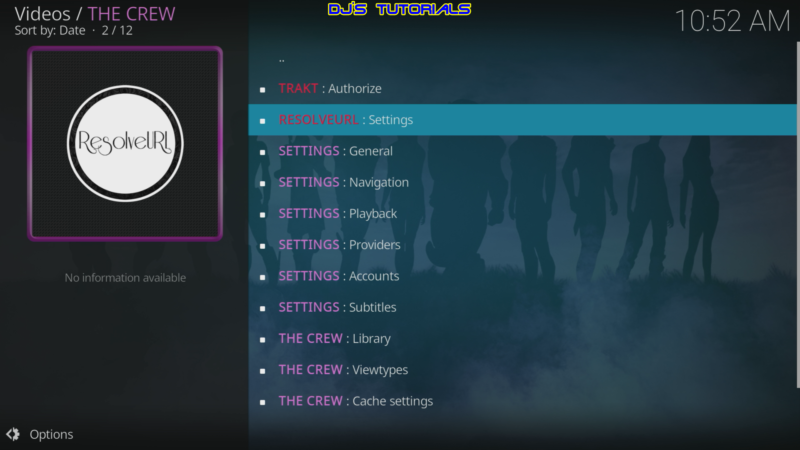
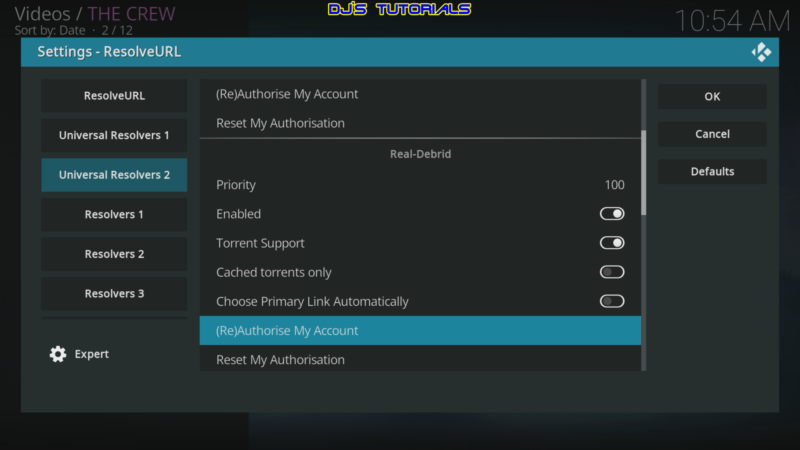
5. From the Universal Resolvers 2 menu on the left, scroll down and click on (Re)Authorize My Account under Real-Debrid.
6. A pop-up screen will appear. Note the code provided on the screen.
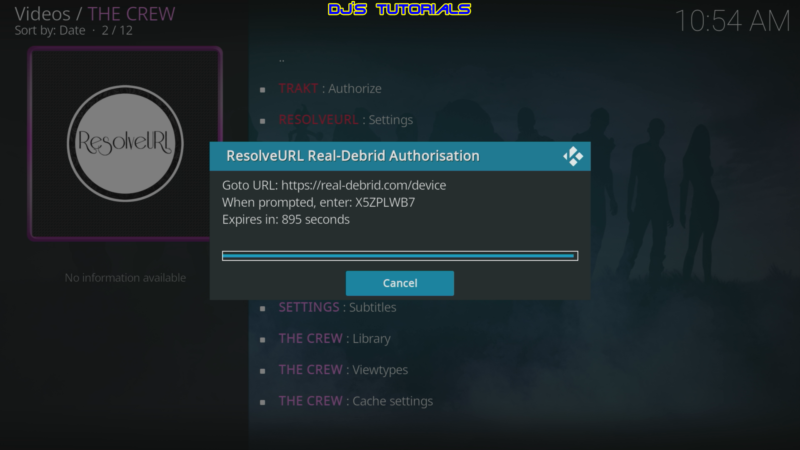
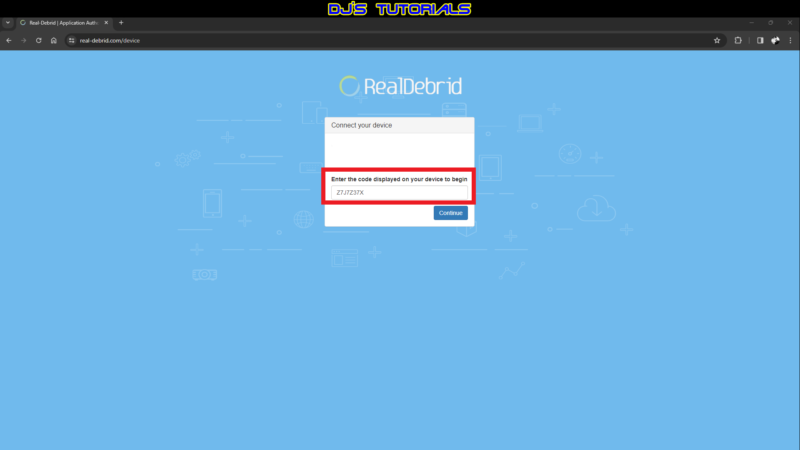
7. Open a browser on another device and go to – https://real-debrid.com/device.
Login to your Real-Debrid account.
Then enter the code that was given from the previous step and click Continue.
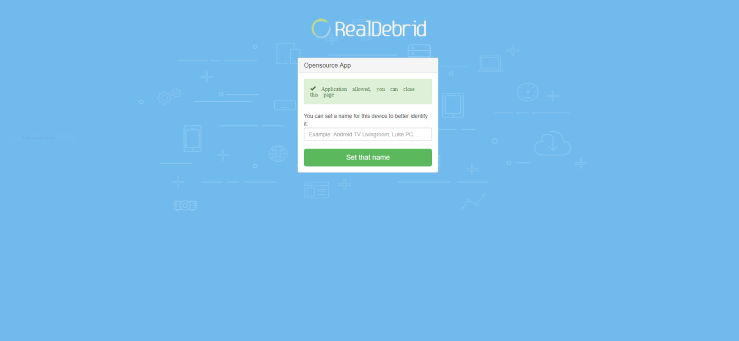
8. Your application is now approved!
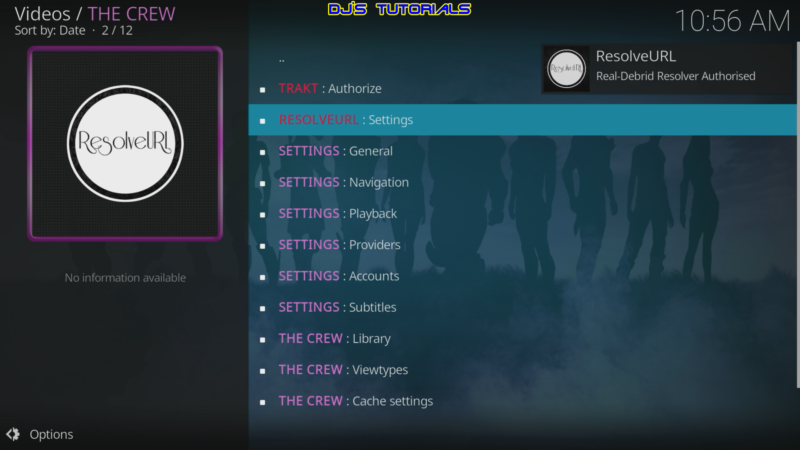
9. Back to The Crew screen you will get the notification that Real-Debrid is Authorized.
10. Go back to The Crew main menu and when you start watching a movie or TV show,
you will notice the Real-Debrid links now appearing with “RD” in the link name.

That’s it! You can now enjoy quality links with a buffer-free experience.
